 Printhawk
Prodigi artwork errors and how to fix them
Updated
Prodigi flags artwork that has too few pixels for the print (resolution_low, resolution_insufficient), the wrong shape (aspect_mismatch), doesn’t cover the print area (print_area_unfilled) or can’t be found (asset_missing). Fix the file, check it against the SKU’s print area, then resubmit or re-order.
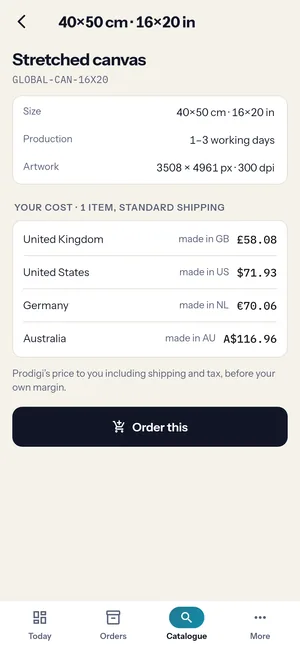
The artwork codes
| Code | What it means | Fix |
|---|---|---|
resolution_low | Fewer pixels than recommended; it may print soft. | Use a larger original, or accept it for posters seen from a distance. |
resolution_insufficient | Too few pixels to print acceptably. | Supply a larger file or choose a smaller size. |
aspect_mismatch | The image shape differs from the print area. | Crop to the right ratio yourself, or choose fit with a border. |
print_area_unfilled | The image doesn’t cover the whole print area. | Extend the background or use fill sizing. |
asset_missing | No file for a required print area, or the URL failed. | Add the file; make sure the URL is public and stays live. |
Each issue carries a severity. A warning lets the order through; an error stops it. The printArea field tells you which area is affected (default for single-image products; others include spine, back and lid).
Resolution: the maths
Every print area in Prodigi’s catalogue has a size in millimetres and a recommendedDpi. Pixels needed = size in inches × dpi (25.4 mm per inch). Two worked examples:
| At 150 dpi | At 300 dpi | |
|---|---|---|
| A3 (297 × 420 mm) | 1754 × 2480 px | 3508 × 4961 px |
| 16 × 20 in | 2400 × 3000 px | 4800 × 6000 px |
Use the print area’s own size, not the product’s nominal name: Prodigi notes that a print labelled 50x70cm can be a 20 × 28 inch print measuring 50.8 × 71.12 cm, and canvases need extra for the wrap. Our pixels to inches table and dpi guide go further. Upscaling can help a little (see upscaling for print), but it can’t add detail that isn’t there.
Shape: crop, fit or stretch
The sizing setting on each order item decides what happens when the shapes differ:
fillPrintArea: fills the area and crops the overflow, centred. Prodigi’s default.fitPrintArea: keeps the whole image and leaves borders.stretchToPrintArea: fills the area by changing the image’s proportions. Rarely what you want.
Prodigi also rotates images automatically to need the least resizing. The safest fix for aspect_mismatch is to crop the file yourself to the exact ratio, so you choose what is lost (see cropping for print).
Missing and broken files
- Private links: Prodigi downloads the file from your URL. Dropbox preview links, expiring signed URLs and pages behind a login fail.
- Formats: JPG, PNG or PDF, per Prodigi’s FAQ. CMYK files are converted to RGB.
- Book spines and page counts: books need a spine file or Prodigi’s dynamic spine, and a page count that matches the file.
Check before you order
In v5, upload or import the file as an asset (up to 100 MB), then call POST /assets/{assetId}/validate with the SKU and print area. It returns valid, warning or error with the same codes. Printhawk’s free catalogue shows the pixels each size needs before you sell it; it doesn’t upload artwork (that isn’t built yet).
Questions
What resolution does Prodigi need?
Each print area in Prodigi's catalogue has a recommended dpi. Multiply the print size in inches by that dpi to get the pixels you need; the catalogue variant lists both.
What happens if my image is the wrong shape for Prodigi?
It depends on the sizing setting. fillPrintArea (the default crop) fills the area and trims the edges, fitPrintArea keeps the whole image and can leave borders, and stretchToPrintArea distorts it to fit.
What file types does Prodigi accept?
Prodigi's FAQ says the API accepts JPG, PNG or PDF, and most products need JPG or PNG. Direct uploads in v5 take files up to 100 MB.
Can I check artwork before ordering?
Yes. Upload the file as an asset and call POST /assets/{assetId}/validate with the SKU and print area; it returns valid, warning or error with the same issue codes an order would get.
Sources
- Prodigi Print API v5 reference: ValidationIssue, PrintArea (recommendedDpi), SizeLabel, Sizing, OrderItemAsset, POST /assets/{assetId}/validate (prodigi.com/print-api/docs), read 27 November 2026.
- Prodigi FAQ, Print API (file types, image fitting, rotation) and Image library (CMYK) (prodigi.com/faq), read 27 November 2026.
- Pixel counts calculated at 25.4 mm per inch and rounded to the nearest pixel.