 Printhawk
Sandbox and live accounts
Updated
Printhawk reads the start of your key to decide the mode: live_ is your real account, sandbox_ is Prodigi’s test environment.
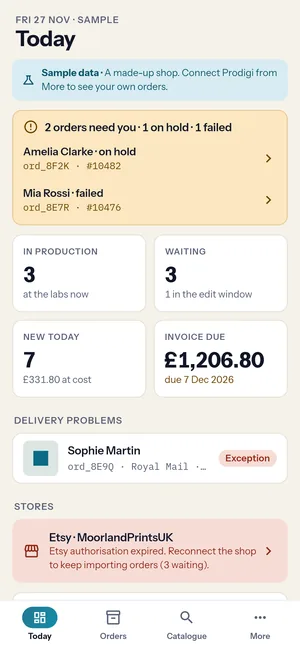
How you can tell
- The line above Today ends with Live, Sandbox or Sample.
- In sandbox, Today and Orders show a banner: “Orders here are never printed, shipped or charged.”
- In More, the current account has a Live or Sandbox tag.
- When you place an order in sandbox, the confirm sheet says nothing is printed or charged.
Steps: add a sandbox account next to live
- In the Prodigi sandbox dashboard, open Settings › API and copy the
sandbox_key. - In Printhawk, go to More › Add another account (Pro).
- Paste the key, name it (for example “Shop (sandbox)”) and tap Connect.
- To switch, tap an account in More and choose Switch to this account.
Good uses for sandbox
- Try new orders and quotes or cancelling before doing it for real.
- Check how a product’s shipping options look for a country.
- Explore without any account at all: Try with sample data on the welcome screen loads a made-up shop.
More about Prodigi’s sandbox and multiple accounts.
Questions
Are sandbox orders ever printed?
No. Prodigi's sandbox never prints, ships or charges. Printhawk shows a Sandbox banner on Today and Orders so you always know which one you're in.
Is anything shared between sandbox and live?
Orders are separate. According to Prodigi's API, artwork, products, sales channels and billing are shared with your live account, so treat them with care.
Can I have both connected?
Yes, with Printhawk Pro: connect the live key and the sandbox key as two accounts and switch from More.
Can I use an old test_ key?
No. Prodigi's v5 API uses sandbox_ keys for testing; Printhawk tells you to get one from the sandbox dashboard.